> For the complete documentation index, see [llms.txt](https://docs.saas.haut.ai/haut.ai/llms.txt). Markdown versions of documentation pages are available by appending `.md` to page URLs; this page is available as [Markdown](https://docs.saas.haut.ai/haut.ai/developers/authentication-and-token-management.md).
# Authentication and Token Management
How to authenticate against the Haut.AI API with a JWT bearer token, manage your API keys, and handle an expired or invalid key.
## Authentication in the API
The API uses **JWT (JSON Web Token)** with a Bearer authentication scheme to securely authenticate requests. Each backend request must include a valid API key in the `Authorization` header.
### **How API Key Authentication Works**
1. **Create an API key in SaaS:** Generate an API key from the SaaS UI and store it securely in your backend configuration. API keys are intended for backend applications and automated server-to-server processes.
2. **Store your Company ID:** Copy the `company_id` shown with the API key and store it alongside the key. Most SaaS API paths include `company_id`, so your backend needs both values to make API requests.
3. **Track API key expiry:** API keys can be created with a fixed expiration time or without expiration. Choose the shortest expiration period your integration can safely support and rotate keys regularly.
### **Sending the JWT Token**
Include the API key in the **Authorization** header of every API request. The format is:
```
Authorization: Bearer {your_api_key_here}
```
Example request:
```http
GET /api/v1/companies/{company_id}/datasets/
Authorization: Bearer eyJhbGciOiJIUzI1NiIsInR5cCI6IkpXVCJ9...
```
In this example, the `Authorization` header contains the keyword `Bearer`, followed by the API key. The `company_id` in the path must match the company ID copied and stored with the API key.
***
## **Token Management and Security Best Practices**
* **UI Management:** check [#manage-api-key-via-ui](#manage-api-key-via-ui "mention").
* **Secure storage:** store the API key and `company_id` in your backend secrets/configuration storage. Do not expose them in frontend code, mobile apps, or public repositories.
* **Token Expiration:** always be aware of the expiration setting for your API keys. For keys with an expiration date, renew them before they expire. Expiration can be seen in the `API and license keys` section, on the `API keys` tab, and can be set only on creation.
* **Rotate Tokens Regularly:** even though API keys are secure, it is a good practice to rotate them periodically. This minimizes the risk of misuse if a key is compromised. To rotate a key:
* create a new API key in SaaS: [#create-api-key](#create-api-key "mention").
* update your backend configuration to use the new API key and its `company_id`.
* delete the old API key in SaaS: [#delete-api-key](#delete-api-key "mention").
* **Handle Expired Tokens:** if the API key is expired, the API will return a **401 Unauthorized** error. When this happens, create a new API key and update your backend configuration.
* **Token Revocation:** if a key needs to be invalidated, for example if credentials are compromised, delete it in SaaS as soon as possible.
### **Manage API Key via UI**
{% hint style="warning" %}
API Key Management is available only for clients on the following plans: Professional and Professional Unlimited.
{% endhint %}
{% hint style="info" %}
The `API and license keys` section has two tabs: `API keys` for the SaaS API and `LIQA licenses` for the LIQA library. This page covers API keys. For LIQA licenses, see [LIQA](/haut.ai/haut.ai-features/liqa.md#manage-liqa-licenses-in-saas).
{% endhint %}
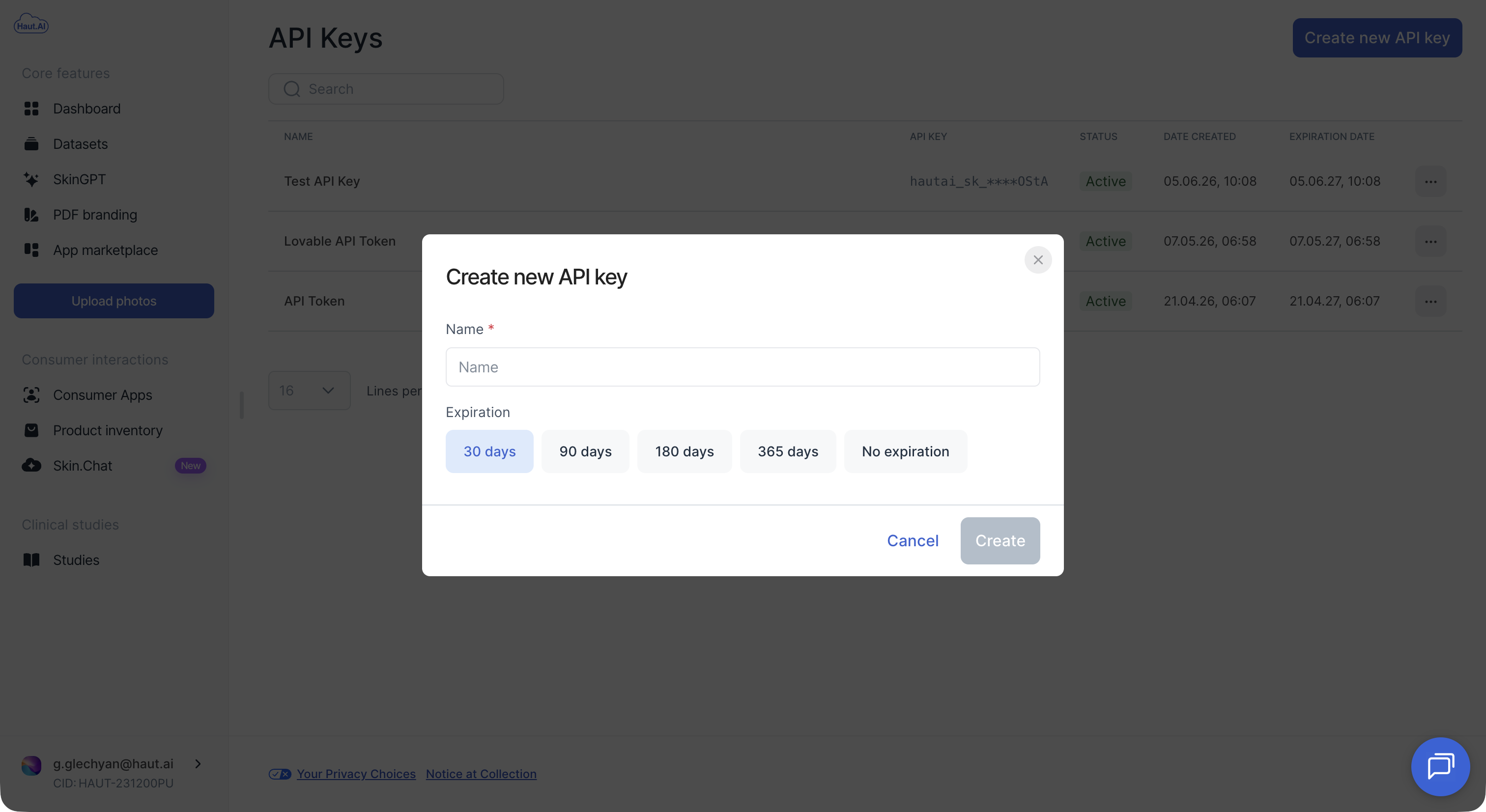
#### Create API Key
1. Hover on your user name in the bottom-left corner.
2. Navigate to the `API and license keys` section. The `API keys` tab opens by default.
3. Click the `Create new API key` button in the top-right corner.
4. Name your key and select the expiration option.
5. If you select `No expiration`, the API key will remain active until it is revoked manually. Long-lived keys increase the security risk if they are exposed, so use an API key with an expiration date whenever your integration allows it.
6. Copy your API key and keep it in a secure place.
7. Copy the Company ID and store it alongside the API key. You will need both the API key and Company ID to use the SaaS API.
#### Delete API Key
{% hint style="warning" %}
Please note that API key deletion is permanent, and this action can not be reversed.
{% endhint %}
1. Hover on your user name in the bottom-left corner.
2. Navigate to the `API and license keys` section. The `API keys` tab opens by default.
3. Find the key you want to delete.
4. Click on the `...` button and then click `Delete`.
5. Confirm deletion.
### **Example Error Response for Invalid or Expired Token**
If you try to access a resource with an invalid or expired API key, the API will return an error response:
```json
{
"type": "client_error",
"errors": [
{
"code": "invalid_token",
"detail": "The provided token is expired or invalid.",
"attr": null,
"extra": null
}
]
}
```
In this case, the `code` indicates that the token is invalid, and the `detail` explains that it is either expired or incorrect.
***
{% hint style="warning" %}
Not a Haut.AI client yet?
{% endhint %}
Book a demoPlatform overview on haut.ai
---
# Agent Instructions
This documentation is published with GitBook. GitBook is the documentation platform designed so that both humans and AI agents can read, navigate, and reason over technical content effectively. Learn more at gitbook.com.
## Querying This Documentation
If you need additional information that is not directly available in this page, you can query the documentation dynamically by asking a question.
Perform an HTTP GET request on the current page URL with the `ask` query parameter, and the optional `goal` query parameter:
```
GET https://docs.saas.haut.ai/haut.ai/developers/authentication-and-token-management.md?ask=&goal=
```
`ask` is the immediate question: it should be specific, self-contained, and written in natural language.
`goal` is optional and describes the broader end goal you are ultimately trying to accomplish on behalf of the user. GitBook uses it to tailor the answer towards what is most useful for that goal.
The response will contain a direct answer to the question and relevant excerpts and sources from the documentation.
Use this mechanism when the answer is not explicitly present in the current page, you need clarification or additional context, or you want to retrieve related documentation sections.