> For the complete documentation index, see [llms.txt](https://docs.saas.haut.ai/haut.ai/llms.txt). Markdown versions of documentation pages are available by appending `.md` to page URLs; this page is available as [Markdown](https://docs.saas.haut.ai/haut.ai/quick-start-guides/no-code-app-for-e-commerce-businesses/integrate-consumer-app-with-klaviyo-crm.md).
# Integrate Consumer App with Klaviyo CRM
This page describes how you can integrate the Consumer App with Klaviyo and send data to the Klaviyo
Connect the Consumer App with Klaviyo to turn skin analysis results into personalized customer communication. After the integration is connected, Haut.AI automatically creates or updates user profiles in Klaviyo and sends each completed skin analysis as a **Skin Analysis Complete** event.
This helps you:
* Build richer customer profiles with survey answers, skin analysis results, and product recommendations.
* Segment users by skin type, concerns, sensitivity, and collected contact details.
* Trigger personalized Klaviyo flows, such as automated emails with each user's analysis results and recommended products.
* Use collected Email, Phone number, and Full name survey answers for compliant customer communication, depending on the consent settings you enable.
To learn more about the data sent to Klaviyo and how to use it, see:
* [Data Sent to Klaviyo](/haut.ai/quick-start-guides/no-code-app-for-e-commerce-businesses/integrate-consumer-app-with-klaviyo-crm/data-sent-to-klaviyo.md) — describes the user profile sync and the **Skin Analysis Complete** event payload, including survey answers, skin parameters, recommendations, and identified concerns.
* [Sending Automated Emails with Skin Analysis Results](/haut.ai/quick-start-guides/no-code-app-for-e-commerce-businesses/integrate-consumer-app-with-klaviyo-crm/sending-automated-emails-with-skin-analysis-results.md) — explains how to build a Klaviyo flow that sends personalized result emails after each analysis, including a ready-to-use HTML template.
* [Sending Automated WhatsApp Messages with Skin Analysis Results](/haut.ai/quick-start-guides/no-code-app-for-e-commerce-businesses/integrate-consumer-app-with-klaviyo-crm/sending-automated-whatsapp-with-skin-analysis-results.md) — explains how to create Meta-approved WhatsApp templates and build a Klaviyo flow that sends them after each analysis, including ready-to-use templates.
* [Build Klaviyo Segments from Skin Analysis Results](/haut.ai/quick-start-guides/no-code-app-for-e-commerce-businesses/integrate-consumer-app-with-klaviyo-crm/build-klaviyo-segments-from-skin-analysis-results.md) — shows how to create dynamic Klaviyo segments on skin condition tags such as Poor redness, or on skin type, using the `hautai_` profile properties.
## Step 1: Add Contact Survey Questions
* Navigate to [`Consumer Apps`](https://saas.haut.ai/app/skin-consultant/dashboard) tab on the menu of SaaS platform.
* Navigate to your Consumer App details by clicking on name of your app in the list of apps .
* To identify users in Klaviyo, you need to add an Email question to your survey. To send the user's name and phone number to Klaviyo, also add Full name and Phone number questions. Open the Survey section in the navigation menu.
* Click on the `Add question` button for each contact field you want to collect.
* On the right click on the `Type` dropdown and select Email.
* Change the question text.
* Repeat the same flow for the Full name and Phone number question types, if you want to send this data to Klaviyo.
* Mark question as mandatory, if you want to make it a required question.
* **Important!** Enable consent collection if you want to add users to a Klaviyo list for marketing communications. Without consent collection, the collected email address can be used only for non-marketing communications.
* To send WhatsApp messages, also enable **WhatsApp transactional consent** (for service messages such as "your results are ready") and/or **WhatsApp marketing consent** (for promotional follow-ups) on the Phone number question. See [Sending Automated WhatsApp Messages with Skin Analysis Results](/haut.ai/quick-start-guides/no-code-app-for-e-commerce-businesses/integrate-consumer-app-with-klaviyo-crm/sending-automated-whatsapp-with-skin-analysis-results.md).
* Click "Save".
For more information about Email, Phone number, Full name, and consent settings, see [Special question types](/haut.ai/haut.ai-features/consumer-apps/add-and-customize-survey-into-consumer-app.md#special-question-types).
## Step 2: Integrate Consumer App with Klaviyo
* Open the **Integrations** section in the navigation menu and select **Klaviyo**.
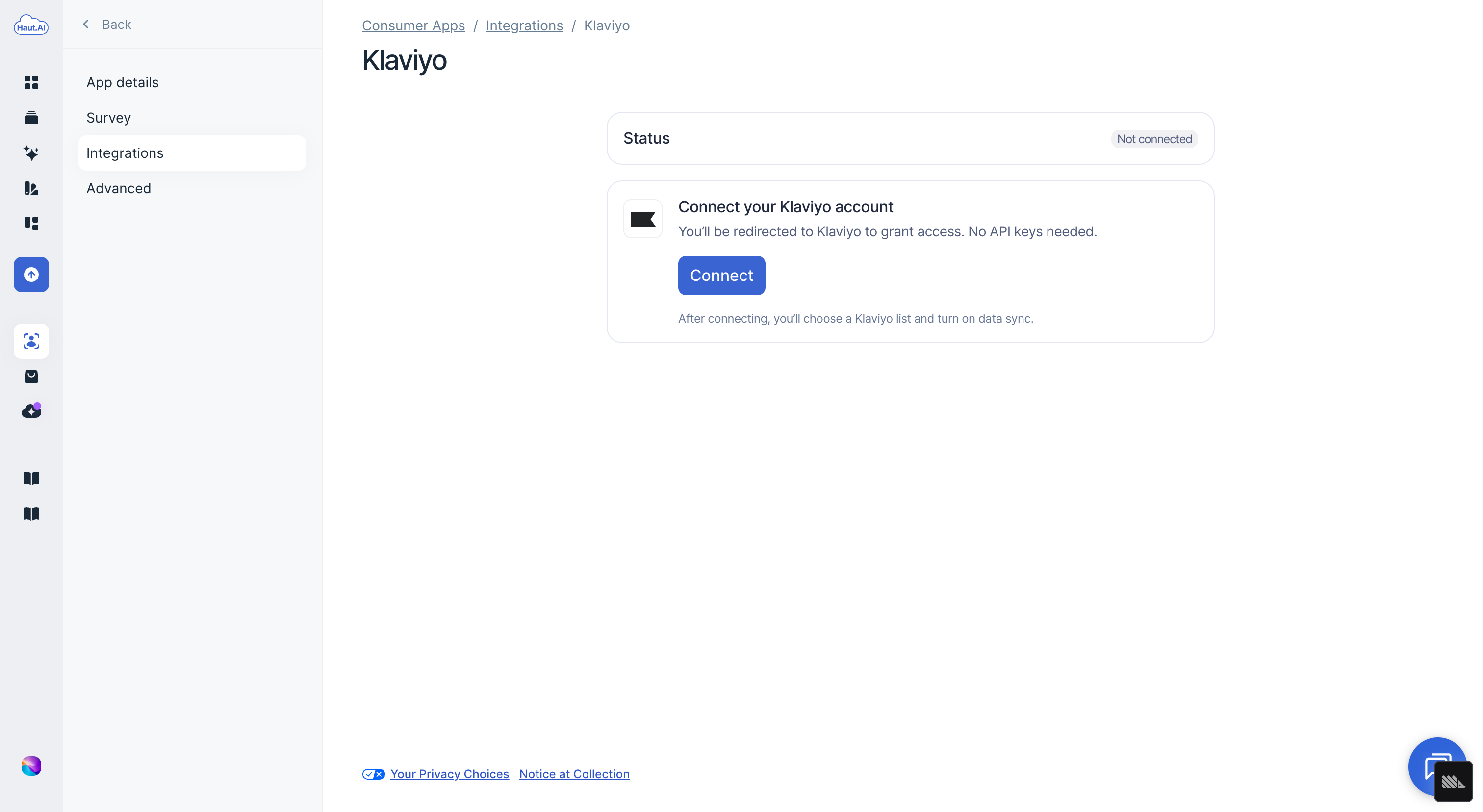
* The status shows **Not connected**. Under **Connect your Klaviyo account**, click **Connect** — no API key is needed.
* You are redirected to Klaviyo to grant access. Sign in to Klaviyo if prompted, then approve the request.
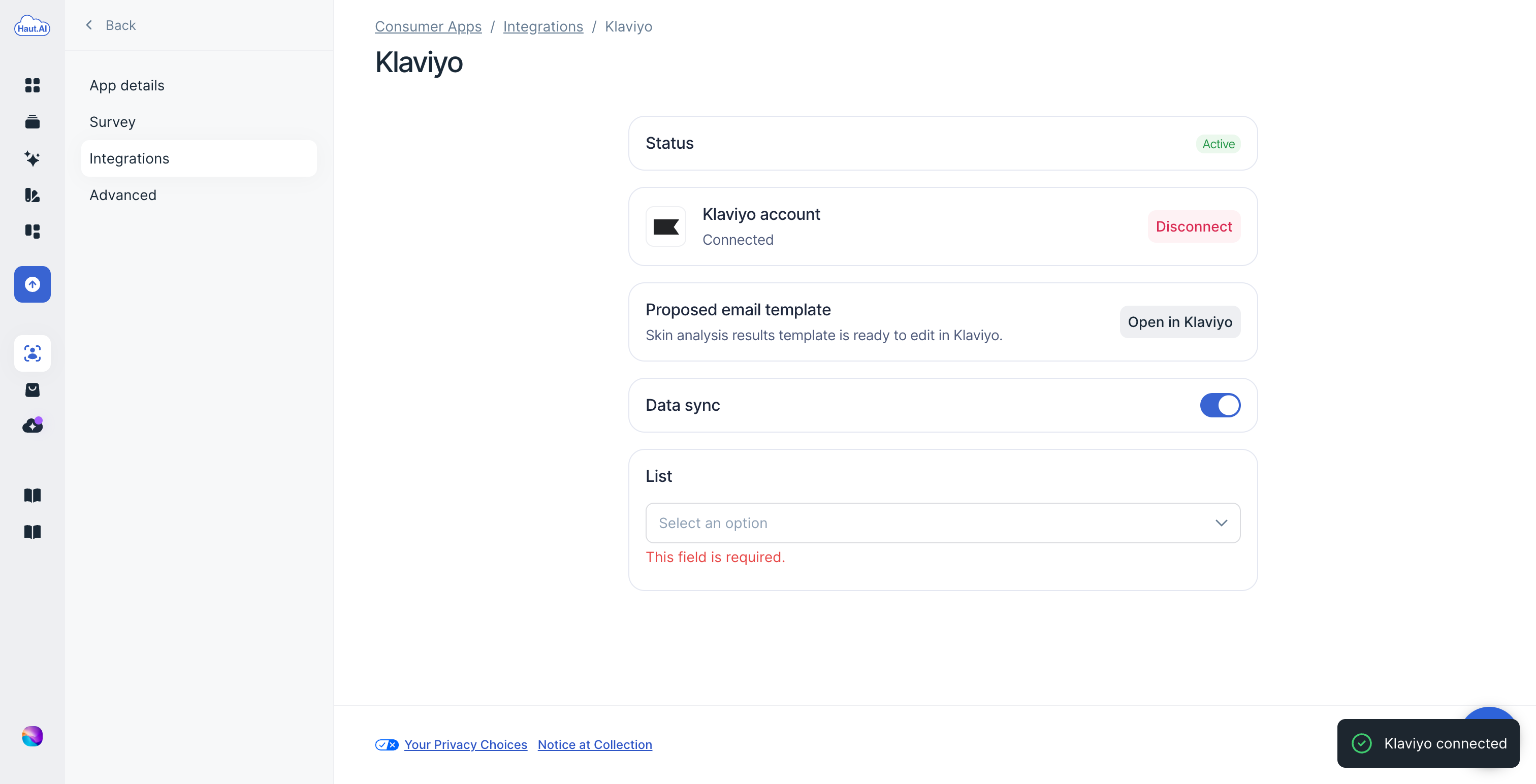
* After you approve, you are redirected back and the status changes to **Active**, with your Klaviyo account shown as **Connected**. Turn on **Data sync** and choose the **List** you want to add contacts to. If you do not have a list yet, follow [this guide](#how-to-find-or-create-klaviyo-lists) to create one.
* Optionally, from the **Proposed email template** card, click **Open in Klaviyo** to create a ready-to-edit "Your Skin Analysis Results" email template in your Klaviyo account. See [Create the Proposed Email Template](/haut.ai/quick-start-guides/no-code-app-for-e-commerce-businesses/integrate-consumer-app-with-klaviyo-crm/create-proposed-email-template.md).
{% hint style="info" %}
Using Mailchimp instead of, or as well as, Klaviyo? See [Integrate Consumer App with Mailchimp](/haut.ai/quick-start-guides/no-code-app-for-e-commerce-businesses/integrate-consumer-app-with-mailchimp.md). Both integrations can be connected to the same app.
{% endhint %}
{% hint style="info" %}
Already connected Klaviyo with a private API key? Your existing connection keeps working during a transition period. Open the Klaviyo integration and choose **Connect** to switch to OAuth. To revoke access later, choose **Disconnect**.
{% endhint %}
## How to Find or Create Klaviyo Lists
The fastest way is to open [Klaviyo Lists](https://www.klaviyo.com/lists) directly.
You can also find this page manually:
1. **Log in** to your Klaviyo account.
2. In the left menu, go to `Audience` → `Lists & Segments`.
3. To find an existing list, browse the list table or use the search bar.
4. To create a new list, click `Create List` / `Segment`, choose `List`, give it a name, and click `Create List`.
## Next steps
Now that your integration is connected, explore these guides:
| Guide | Description |
| -------------------------------------------------------------- | --------------------------------------------------------------------------------------------------------------------------------------------------------------------------------------- |
| Data Sent to Klaviyo | Understand the **Skin Analysis Complete** event — what data is sent, including skin metrics, product recommendations, and user concerns. Includes a full payload reference and example. |
| Sending Automated Emails with Skin Analysis Results | Build a Klaviyo flow that automatically emails users their personalized skin analysis results. Includes a production-ready HTML email template and a walkthrough of how it works. |
| Sending Automated WhatsApp Messages with Skin Analysis Results | Create Meta-approved WhatsApp templates and a Klaviyo flow that sends them after each analysis. Includes ready-to-use templates and the consent setup. |
| Build Klaviyo Segments from Skin Analysis Results | Target users rated Poor on redness, users with dry skin, or any other result with a dynamic Klaviyo segment that updates itself after every analysis. |
***
{% hint style="warning" %}
Not a Haut.AI client yet?
{% endhint %}
Book a demoPlatform overview on haut.ai
---
# Agent Instructions
This documentation is published with GitBook. GitBook is the documentation platform designed so that both humans and AI agents can read, navigate, and reason over technical content effectively. Learn more at gitbook.com.
## Querying This Documentation
If you need additional information that is not directly available in this page, you can query the documentation dynamically by asking a question.
Perform an HTTP GET request on the current page URL with the `ask` query parameter, and the optional `goal` query parameter:
```
GET https://docs.saas.haut.ai/haut.ai/quick-start-guides/no-code-app-for-e-commerce-businesses/integrate-consumer-app-with-klaviyo-crm.md?ask=&goal=
```
`ask` is the immediate question: it should be specific, self-contained, and written in natural language.
`goal` is optional and describes the broader end goal you are ultimately trying to accomplish on behalf of the user. GitBook uses it to tailor the answer towards what is most useful for that goal.
The response will contain a direct answer to the question and relevant excerpts and sources from the documentation.
Use this mechanism when the answer is not explicitly present in the current page, you need clarification or additional context, or you want to retrieve related documentation sections.